
Can You Check Inventory History?
Yes, you can check your inventory history. Steam maintains a permanent log of every item that has ever entered or left your account, providing a clear audit trail for your digital assets. Whether you are trying to verify a trade from years ago or simply want to check Steam inventory history to see where a specific skin went, the data is readily available.
How to See Your Steam Inventory History
Follow these steps to view a comprehensive log of your items:
Log In: Open Steam and ensure you are logged into your account.
Navigate to Inventory: Hover over your username in the top menu and select "Inventory" from the dropdown list.
Access the 'More' Menu: Look toward the top right of your inventory display, next to the "Trade Offers" button. Click on the "More" button.
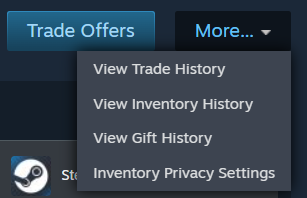
Select Inventory History: From the small dropdown menu, click on "View Inventory History."
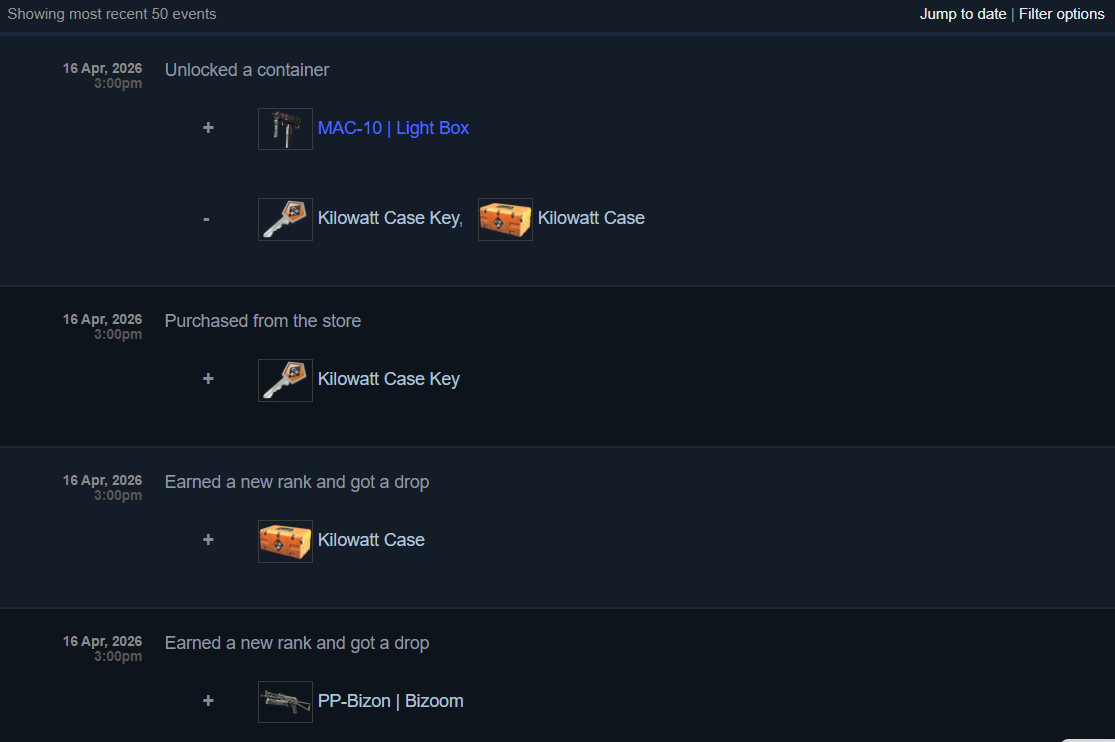
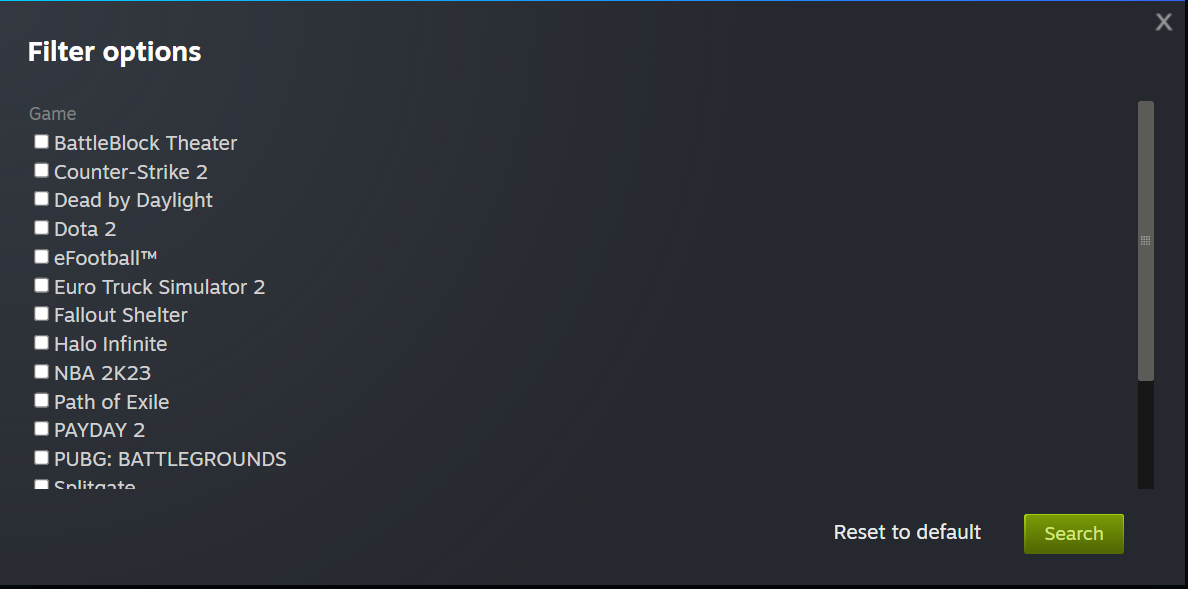
Filter Your Results: Once the page loads, you can scroll through your entire history or use the "Jump to date" and "Filter by game" options to find specific entries, such as your steam gift inventory history or past trade assets.
This section provides a complete audit trail, showing you exactly when items were added, removed, or traded, making it the ultimate steam inventory history checker for keeping your account organized.
If you’re wondering how to check your Steam trade history, take a look at our special article about it.
How to View Steam Inventory History via Web Browser
If you are away from your primary gaming PC, you can still easily check steam inventory history using any standard web browser. This method is often faster for those who want to use browser extensions or third-party steam inventory history checker tools. Follow these steps:
Visit Steam Community: Go to the official Steam Community website and log in with your credentials.
Open Your Profile: Click on your display name at the very top of the screen and select "Inventory" from the sidebar menu on the right.
Find the 'More' Menu: Just above your item grid, locate and click the "More" button (next to Trade Offers).
Select View Inventory History: From the dropdown, click "View Inventory History" to load your complete transaction log.
Analyze the Data: You can now browse through pages of data, including specific steam gift inventory history and every item movement associated with your account.
Steam Inventory History Not Updating or Not Showing
It can be incredibly frustrating when your steam inventory history appears blank or fails to refresh after a major trade. However, if the problem persists, it could be a local technical issue. Here are the most effective ways to fix it:
Clear Steam Browser Cache: Go to Settings > In-Game and click "Delete Web Browser Data." This often fixes "Inventory Not Available" errors that prevent history from loading.
Check for "Too Many Requests": If you use a steam inventory history checker extension or a VPN, Steam may temporarily block your IP. Try disabling these tools and waiting 24 hours.
Verify Authentication: Sometimes the Steam client displays your profile but hasn't fully authenticated your session for secure data. Try logging out and back in to refresh your credentials.
Privacy Settings: Ensure your inventory isn't set to "Private." While this doesn't usually hide history from you, it can cause glitches with how the history page renders across different devices.
Wait for Maintenance: Steam's weekly maintenance (usually Tuesday evenings) can cause temporary outages where your steam inventory value history or trade logs simply won't appear until the servers are back online.
If you've cleared your cache and checked the servers, but specific items are still missing, have you checked if the items are currently "hidden" due to the 10-day trade visibility cooldown?
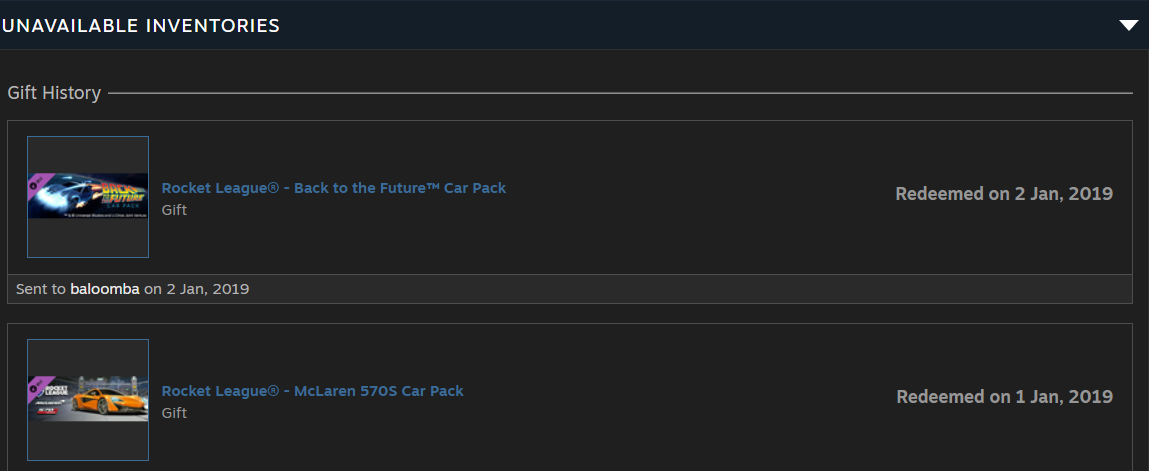
How to Check Steam Gift History
Whether you’ve sent a game to a friend or received one as a surprise, you can easily view the status and redemption date of these items. To check your records in 2026, follow these steps:
Navigate to Your Inventory: In the Steam client or browser, hover over your profile name and select "Inventory."
Locate the 'More' Menu: Click on the "More" button (sometimes displayed as three dots "...") located at the top right, next to "Trade Offers."
Select Gift History: Click on "View Gift History" from the dropdown menu. This will open a dedicated page showing every gift associated with your account.
Review Sent and Received Gifts: The list will display the name of the game, the sender/recipient, the date it was sent, and its current status (e.g., "Sent," "Redeemed," or "Declined").
Can You View Someone Else’s Steam Inventory History?
No, you can’t view someone else’s Steam inventory history. While many people search for a way to check someone's steam inventory history, Steam restricts the "View Inventory History" page exclusively to the account owner. However, if a user has their profile set to "Public," you can still see their current items and any showcased trade assets. In 2026, Valve has maintained strict protocols to ensure that private trade details and market values remain confidential.
Check out our full guide on how to make your Steam Inventory public here.
If you are concerned about your own data and want to know how to not let anyone see your inventory history steam, you can manage this through your privacy settings:
Go to Edit Profile: Click "Edit Profile" on your Steam page and select the "Privacy Settings" tab.
Adjust Inventory Visibility: Set your "Inventory" to "Private" or "Friends Only." Even if it is set to Public, remember that strangers can only see what you currently own, not your past trades.
10-Day Visibility Rule: Keep in mind that as of recent updates, newly traded or purchased items are often hidden from the public for the first 10 days by default to prevent targeted scams.
While you cannot see a stranger's full history, you can often use a third-party steam inventory history checker to track the ownership history of a specific item (like a rare CS2 knife) via its unique ID, rather than the user's entire account activity.
How to Hide Steam Inventory History
In 2026, the most effective way to prevent others (or third-party steam inventory history checker sites) from seeing your item movements is to adjust your profile privacy settings. To do this, go to your profile, click "Edit Profile," and navigate to the "Privacy Settings" tab.
Under the "Inventory" section, you can choose between "Public," "Friends Only," or "Private." Setting this to Private ensures that no one can see what you currently own, which effectively stops them from tracking your Steam inventory value history over time.
If you have a lot of useless skins in CS2, feel free to visit Skin.Land. It’s the best marketplace where you can buy and sell your items safely and cost-effectively.







Escriba un comentario